
A loud listing card for a drill or any power tool
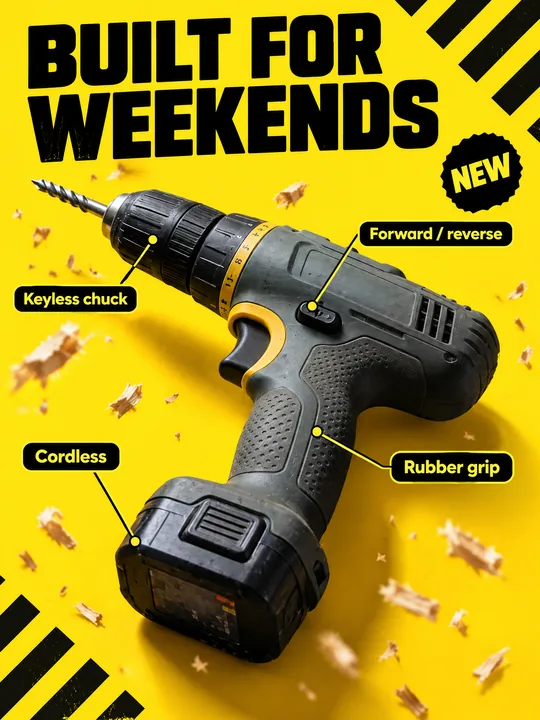
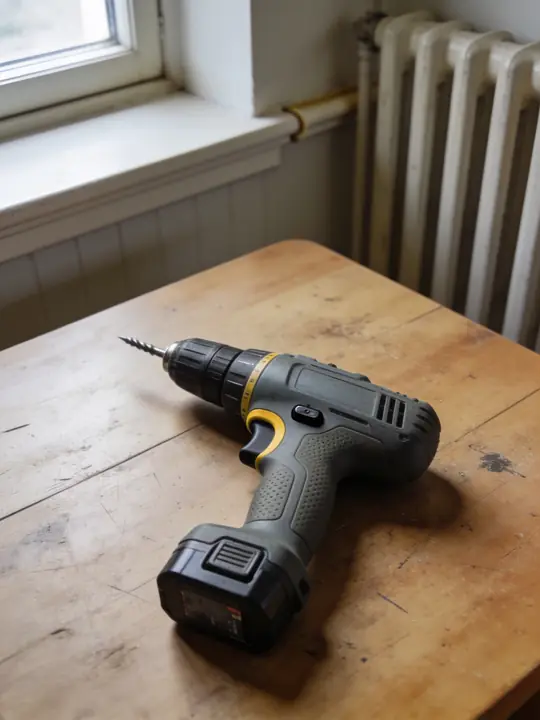
This prompt turns a photo of a drill on an old table into a loud marketplace card: the tool large at an angle on a bright yellow background, black hazard stripes in a corner, flying wood shavings, labels with lines to its parts, a heavy headline and a NEW badge. The example was made with GPT Image 2.5 Flare at 3:4. Press Try it in ClickBait and add a photo of your tool to the references.
Updated:
The prompt, the drill photo and the card
- Model
- GPT Image 2.5 Flare
- Aspect ratio
- 3:4
Use the product from the reference photo exactly as it is: same shape, proportions, colour and material. Do not redesign it and do not print any logo or text on the product itself. Marketplace product listing card, vertical 3:4, bold tool-store infographic. The cordless drill from the reference is shown large at a dynamic angle on a bright safety-yellow background with diagonal black hazard stripes in one corner and a few wood shavings flying. Callout labels with thin leader lines point to its real parts: "Cordless", "Keyless chuck", "Forward / reverse", "Rubber grip". Big heavy headline at the top: "BUILT FOR WEEKENDS". A small badge: "NEW". Crisp studio lighting, hard shadows, realistic materials, high-converting e-commerce card. All text must be spelled exactly as given, crisp and legible. No other text, no real brand logos.The prompt is in English, the language models follow best. Swap the product, colors and headlines right in the text.
The button opens Photo with this prompt, model and aspect ratio. Add a photo of your product to the references: the prompt is written for it. No account yet? Sign up first, the prompt waits for a day.
How to make a card for your tool
Shoot the whole tool
As in the example, a photo on a table in window light works. Every part from the labels should be visible: the chuck, the switch, the grip, the battery.
Open the prompt and replace the labels
Try it in ClickBait opens Photo with GPT Image 2.5 Flare, 3:4, 2K and medium quality. Put the photo in the references and rewrite the labels for your tool.
Compare with the original
Check the body, the accent colors and the text on the battery: large lettering follows the reference, small text can drift. One run gives 1 to 4 variants, and the token price is on the button before you start.
What to change for your tool
- The tool and its parts. Replace cordless drill with yours: angle grinder, jigsaw, wrench set. Rewrite the quoted labels for parts visible in the photo, for example "Adjustable guard" and "Side handle" on a grinder.
- What flies in the frame. a few wood shavings flying suits a drill or a saw. For a wrench set use metal shavings, for garden tools soil and grass clippings. One kind of particle is enough, or the frame gets noisy.
- Brand color. bright safety-yellow and diagonal black hazard stripes speak of building and repair at once. If your brand color is orange or red, switch the background to it, but keep the contrast with the tool body.
- Headline and badge. BUILT FOR WEEKENDS speaks to people who fix things at home on weekends. A pro tool needs another message, for example "MADE FOR DAILY WORK". Keep NEW only for a new product.
- The light. Crisp studio lighting, hard shadows and realistic materials show rubber, plastic and metal as they are. Better keep these lines: the sharp look of the card rests on them.
Which products and channels it suits
The prompt is written for a power tool, but it also fits other goods from a hardware or home improvement store: hand tools, fasteners, garden equipment. The yellow and black palette and the flying shavings show the category at first glance.
The card is useful on a marketplace, in ads for a tool store and in a newsletter about a new arrival. For a website banner pick 16:9 and change vertical 3:4 in the prompt text.
Where to find it in ClickBait
GPT Image 2.5 Flare lives in ClickBait under the Photo section. Sign up, pick a version from the model list and describe what you want to get.
The token price is shown on the run button before you start. If a generation fails, the tokens go back to your balance automatically.
New accounts created with Google or email get a welcome bonus of 10 tokens. These are promo tokens and expire after 14 days.
More prompts
 Fashion magazine coverGPT Image 2.5 Sunburst, 3:4from 2 tokens
 Luxury magazine coverGPT Image 2.5 Flare, 3:4from 2 tokens
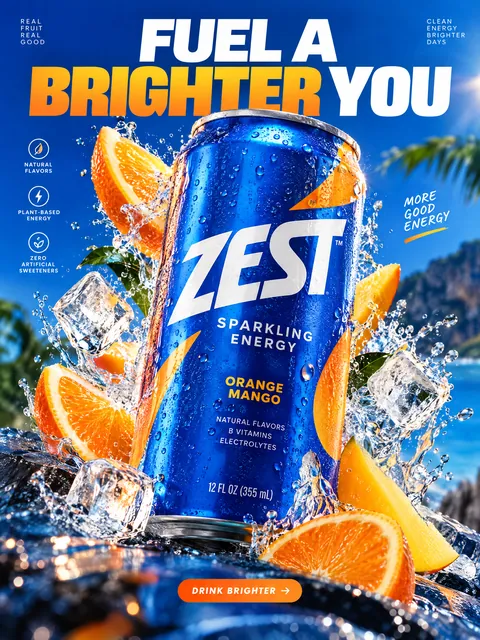 Product ad posterGPT Image 2.5 Sunburst, 3:4from 2 tokens
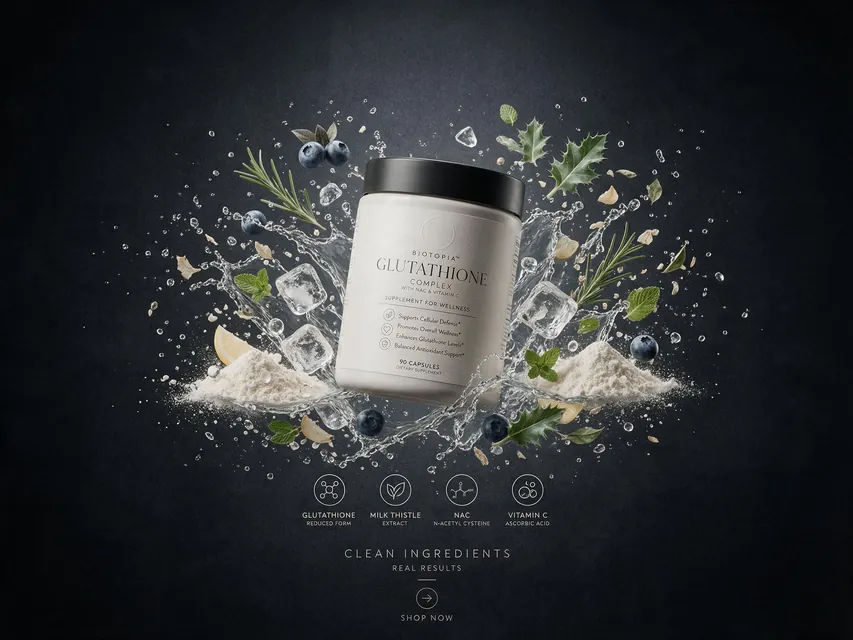 Supplement adSeedream 5.0 Pro, 4:3from 8 tokens
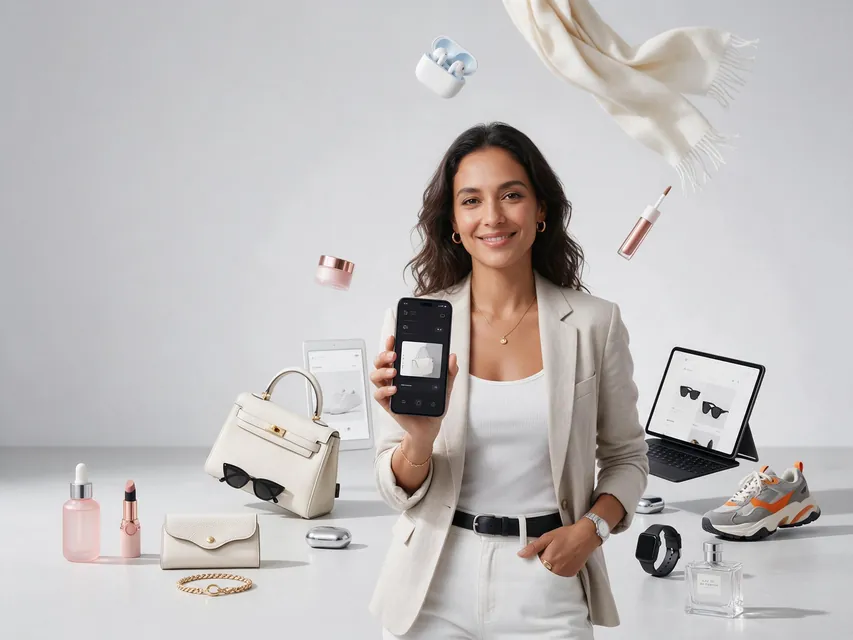 E-commerce adSeedream 5.0 Pro, 4:3from 8 tokens
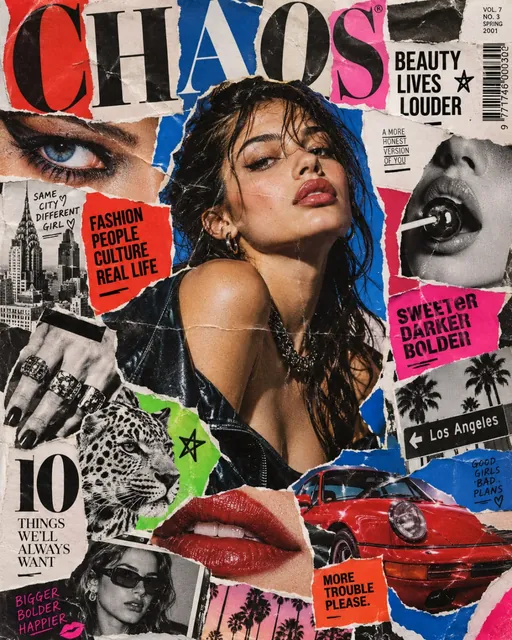 Magazine cutout collageGPT Image 2.5 Sunburst, 4:5from 2 tokens
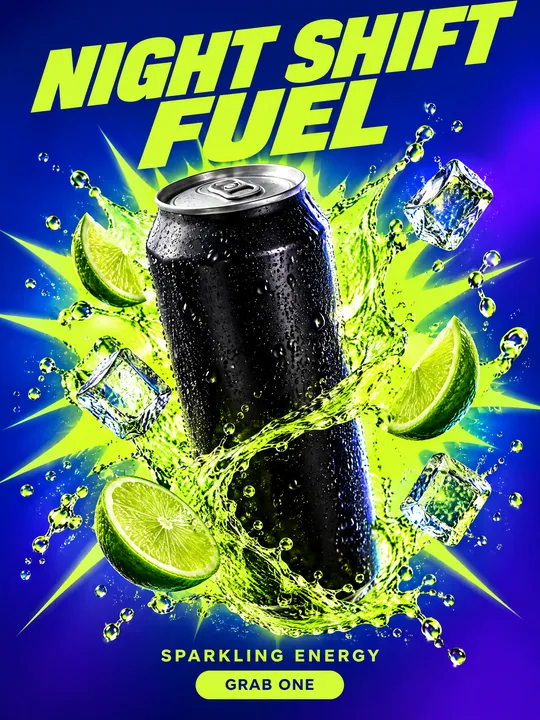 Energy drink posterGPT Image 2.5 Flare, 3:4from 2 tokens
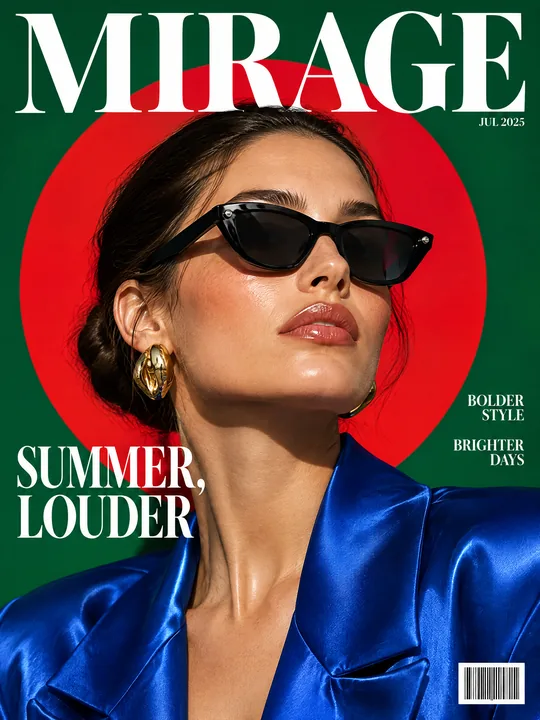 Sunglasses magazine coverGPT Image 2.5 Flare, 3:4from 2 tokens
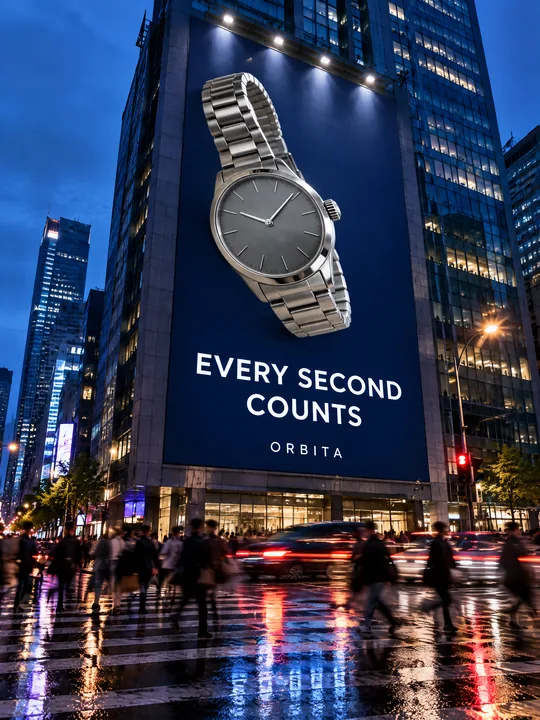 Building billboardGPT Image 2.5 Flare, 3:4from 2 tokens
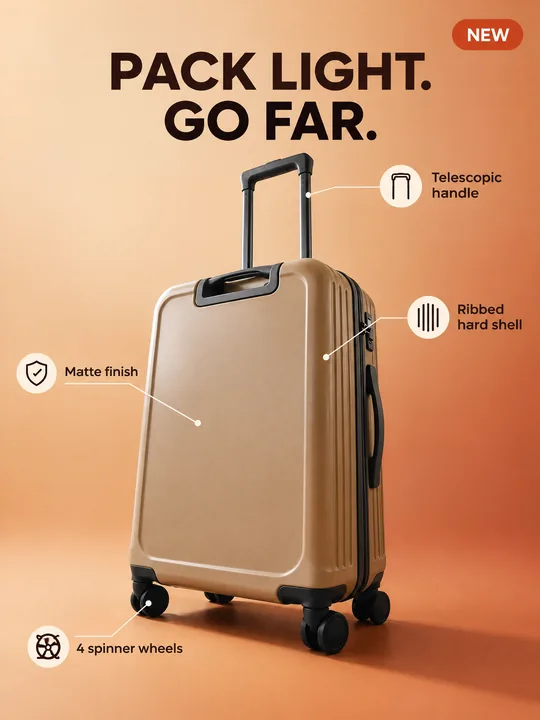 Marketplace infographicGPT Image 2.5 Flare, 3:4from 2 tokens
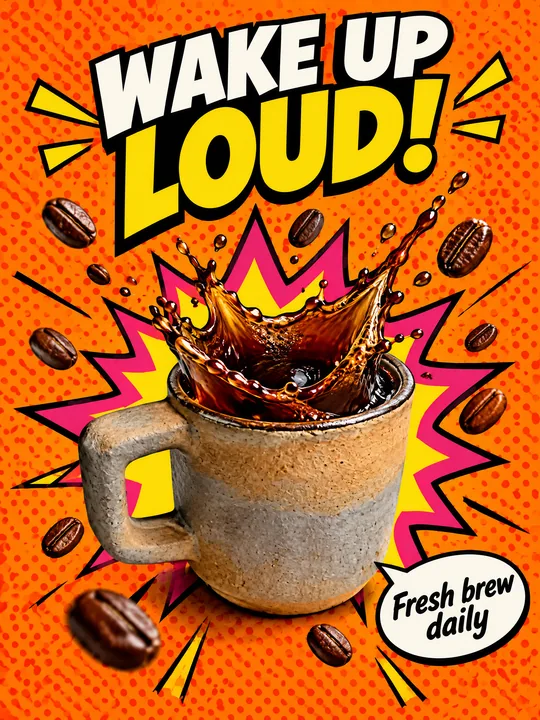 Pop art posterGPT Image 2.5 Flare, 3:4from 2 tokens
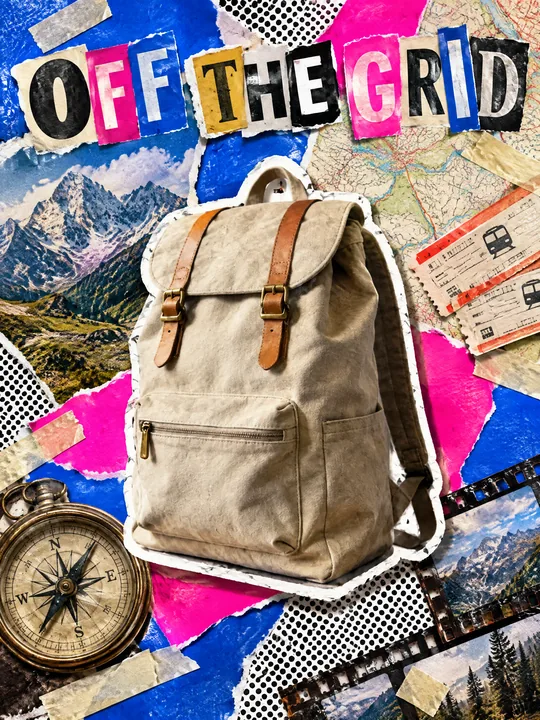 Ransom note collageGPT Image 2.5 Flare, 3:4from 2 tokens
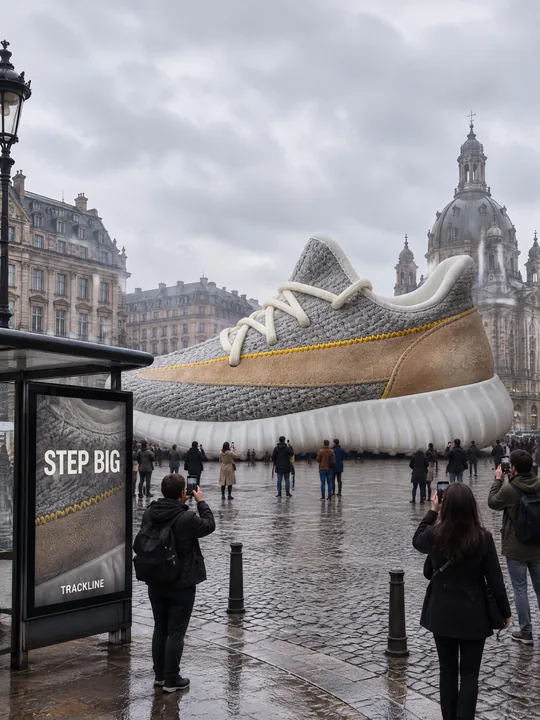 Giant product in the cityGPT Image 2.5 Flare, 3:4from 2 tokens
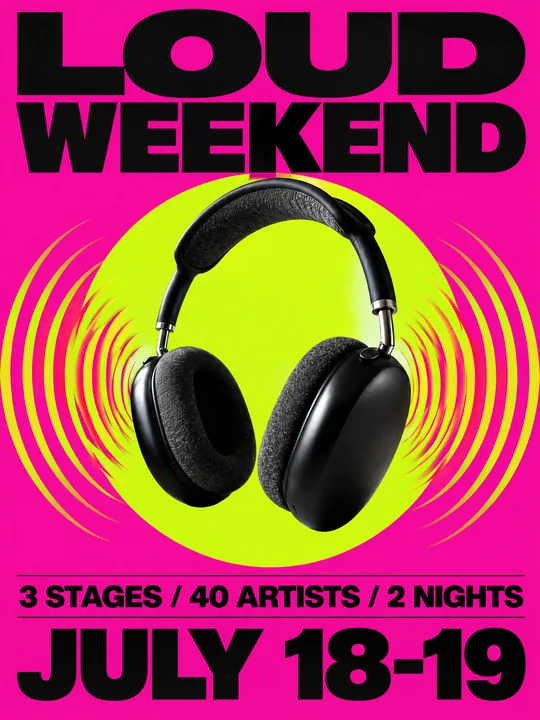 Festival gig posterGPT Image 2.5 Flare, 3:4from 2 tokens
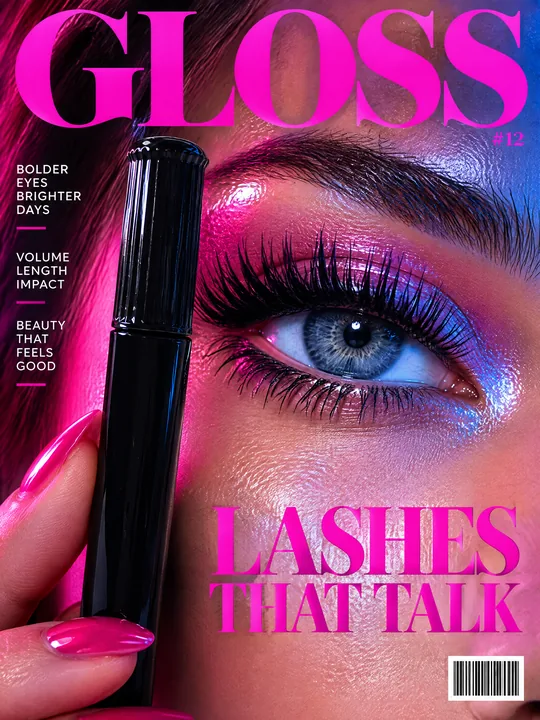 Beauty magazine coverGPT Image 2.5 Flare, 3:4from 2 tokens
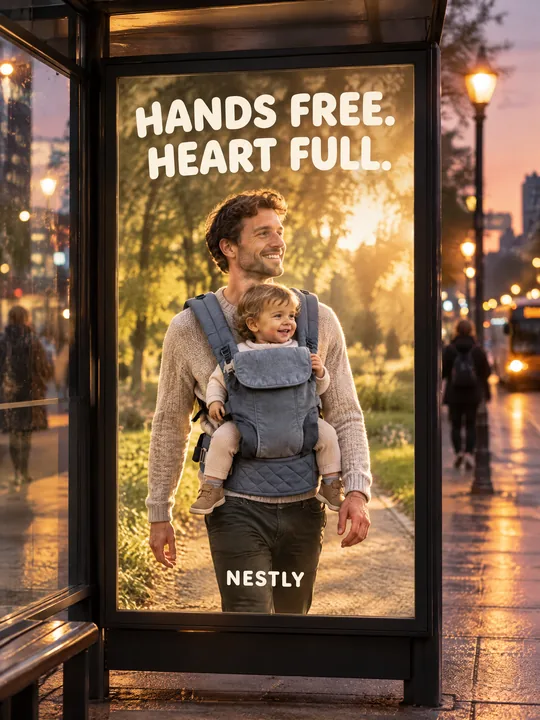 Bus stop posterGPT Image 2.5 Flare, 3:4from 2 tokens
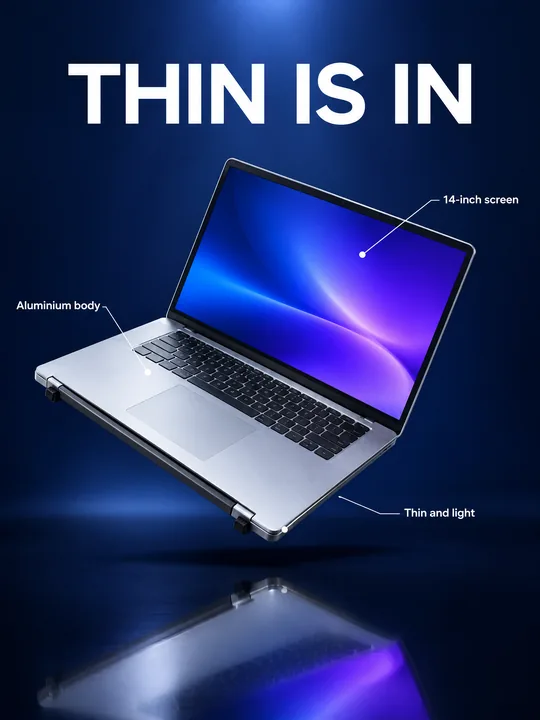 Gadget launch visualGPT Image 2.5 Flare, 3:4from 2 tokens
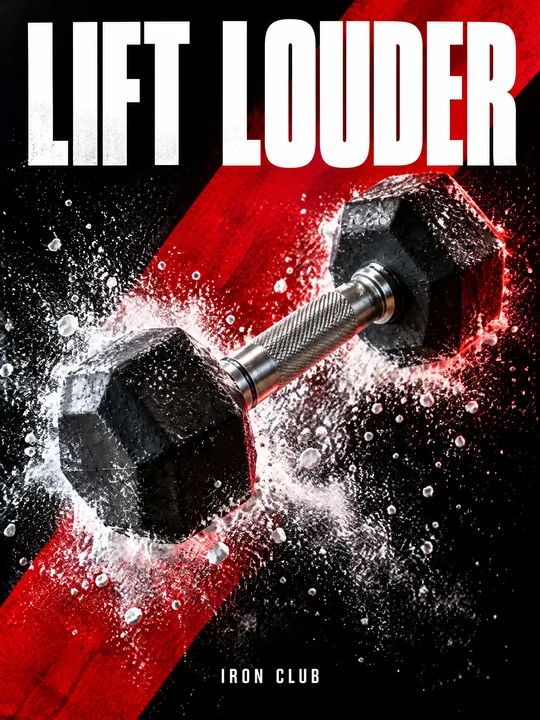 Sports posterGPT Image 2.5 Flare, 3:4from 2 tokens
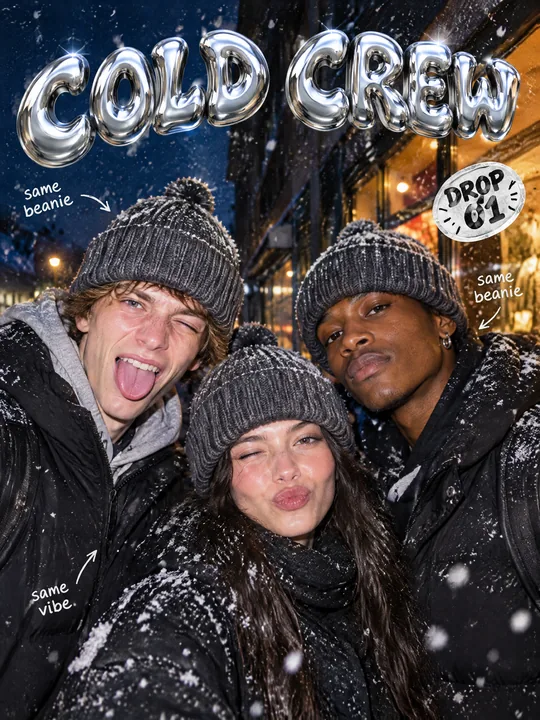 Streetwear drop posterGPT Image 2.5 Flare, 3:4from 2 tokens
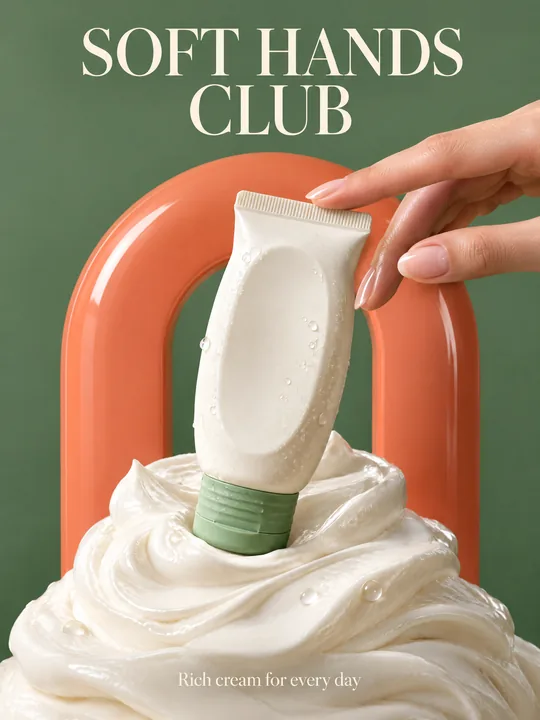 Skincare campaignGPT Image 2.5 Flare, 3:4from 2 tokens
The model and related tools
GPT Image
images up to 4K
up to 16 references
from 2 tokens
Ad posters and banners
17 models
Kling, Nano Banana, GPT Image, Seedream, FLUX, WAN, Z-Image
from 2 tokens
AI image generator
18 models
Kling, Nano Banana, GPT Image, Seedream, FLUX, WAN, Z-Image
from 2 tokens
Marketplace product photos
17 models
Kling, Nano Banana, GPT Image, Seedream, FLUX, WAN
from 2 tokens
Creatives for affiliate marketing
30 models
Kling, Seedance, Veo, Nano Banana, GPT Image, Seedream, FLUX, WAN, MiniMax H3, Z-Image
from 2 tokens
Frequently asked questions
Will the prompt work for a grinder, a jigsaw or a wrench set?
Yes. Replace cordless drill with the tool name, rewrite the labels for its parts and swap the shavings for something that fits the tool: sparks for a grinder, sawdust for a jigsaw, metal shavings for a wrench set.
What if the text on the tool comes out wrong?
Large lettering follows the reference, while small text such as battery markings can be distorted. Compare the result with the original and run it again: one run gives 1 to 4 variants.
Why does the card have black stripes and shavings?
They are category signals: yellow and black stripes recall a building site, and the shavings show the tool at work. For a calmer look, remove with diagonal black hazard stripes in one corner and a few wood shavings flying from the prompt.
Can I make a card in the exact size a marketplace needs?
Yes. Besides 1K, 2K and 4K, GPT Image 2.5 Flare accepts a custom size in pixels. Try it opens at 2K and medium quality, and you can change both before the run.
What happens if a generation fails?
The tokens go back to your balance on their own. If the image came out but you do not like it, adjust the prompt and run again: the token price is on the button before you start.